# How to create an Object Storage bucket

import Tabs from '~/components/tabs/Tabs'
import Code from '~/components/Code/Code.astro'

This guide shows how to use Azion **Object Storage** service to create a read-only bucket and assign read-write permissions using the Console and the Azion API. 

## Creating a bucket

<Tabs client:visible>
    <Fragment slot="tab.console">Console</Fragment>
    <Fragment slot="tab.cli">Azion CLI</Fragment>
    <Fragment slot="tab.api">API</Fragment>

<Fragment slot="panel.console">

Access the [Azion Console](https://console.azion.com/object-storage) and follow the steps below:

1. In the side menu, click on **Object Storage**.
2. Click the **+ Buckets** button.
3. Fill in the bucket name with a unique and descriptive name to identify it.
4. Then, select the access type (Read & Write, Read Only, or Restricted).
5. Click **Save**.
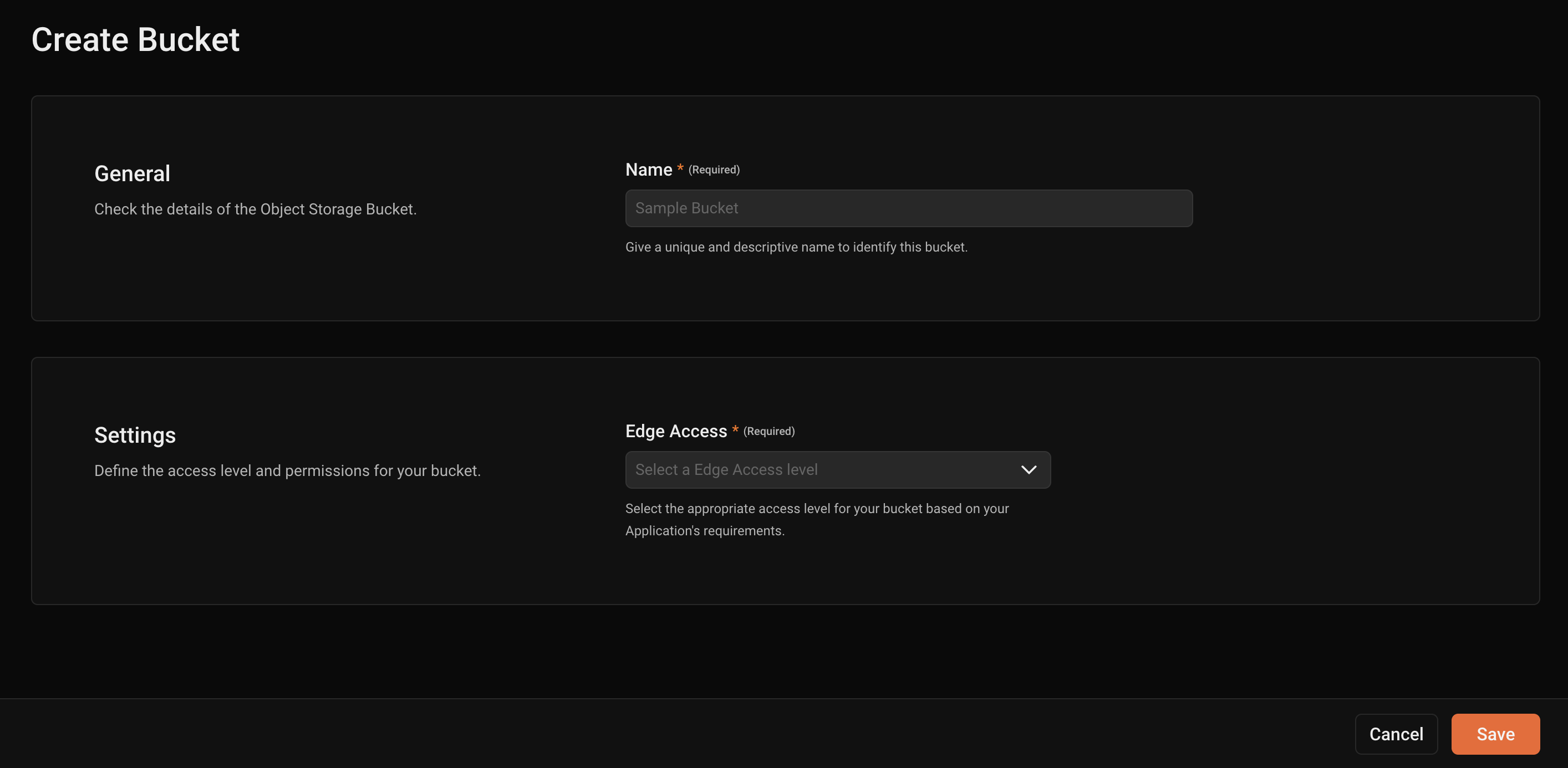
![Create new bucket](/assets/docs/images/uploads/stoage-create-bucket-console.png)

</Fragment>

<Fragment slot="panel.cli">

## Requirements 

- [Azion CLI installed](/en/documentation/products/azion-cli/overview/#installing-azion-cli). 
- [A personal token configured](/en/documentation/devtools/cli/globals/#token).

To create a bucket:

<Code lang="bash" code={`
azion create edge-storage bucket
`} />

Azion CLI will present a series of interactions, so the bucket can be created. Run `azion update edge-storage bucket -h` for further information.

:::note
When creating a name for your bucket, keep in mind that the name must be unique among all existing buckets.
:::

</Fragment>

<Fragment slot="panel.api">

Run the following `POST` request in your terminal, replacing `[TOKEN VALUE]` with your [personal token](/en/documentation/products/guides/personal-tokens/) and `name` with the desired bucket name to create a new read-only bucket:

<Code lang="bash" code={`
curl --location 'https://api.azion.com/v4/storage/buckets' \
--header 'Accept: application/json;' \
--header 'Content-Type: application/json' \
--header 'Authorization: Token [TOKEN VALUE]' \
--data '{
    "name": "my-bucket-ro",
    "edge_access": "read_only"
}'
`} />

You should receive the following response:

```json
{
  "state": "executed",
  "data": {
    "name": "my-bucket-ro",
    "edge_access": "read_only"
  }
}
```

</Fragment>

</Tabs>

---

## Attributing read-write permission to bucket

<Tabs client:visible>
    <Fragment slot="tab.cli">Azion CLI</Fragment>
    <Fragment slot="tab.api">API</Fragment>

<Fragment slot="panel.cli">

## Requirements 

- [Azion CLI installed](/en/documentation/products/azion-cli/overview/#installing-azion-cli). 
- [A personal token configured](/en/documentation/devtools/cli/globals/#token).

To create a bucket: 

<Code lang="bash" code={`
azion update edge-storage bucket
`} />

Azion CLI will present a series of interactions, so the bucket can be updated. Run `azion update edge-storage bucket -h` for further information. 

</Fragment>

<Fragment slot="panel.api">


Run the following `PATCH` request in your terminal, replacing `[TOKEN VALUE]` with your [personal token](/en/documentation/products/guides/personal-tokens/) and `bucket_name` with the name of the bucket to attribute the read-write permission:

<Code lang="bash" code={`
curl --location --request PATCH  'https://api.azion.com/v4/storage/buckets/<bucket_name>' \
--header 'Accept: application/json;' \
--header 'Content-Type: application/json' \
--header 'Authorization: Token [TOKEN VALUE]' \
--data '{
    "edge_access": "read_write"
}'
`} />

You should receive the following response:

```json
{
  "state": "executed",
  "data": {
    "name": "my-bucket-ro",
    "edge_access": "read_write"
  }
}
```
</Fragment>

</Tabs>

Now, you have successfully created a bucket and attributed read-write permissions to it. You can start storing and retrieving objects from this bucket.

:::caution[Warning]
When a bucket is configured with **read-write permissions**, any user can access and modify its content (for example, by sending a PUT request to overwrite files). If the bucket is used as an origin for applications, this configuration may expose the content to unauthorized modifications. However, suppose the bucket is accessed through a function. In that case, the risk is managed by the logic implemented in the function code, allowing developers to enforce stricter controls over who can access or modify the data. To mitigate risks, always verify the required permissions for each use case and implement proper access controls. Read more on [Authentication and permissions](/en/documentation/products/store/object-storage/#authentication-and-permissions).
:::