How to create an Object Storage bucket
Learn how to create a new read-only bucket and attribute read-write permissions to it using the Azion API.
This guide shows how to use Azion Object Storage service to create a read-only bucket and assign read-write permissions using the Console and the Azion API.
Creating a bucket
Access the Azion Console and follow the steps below:
- In the side menu, click on Object Storage.
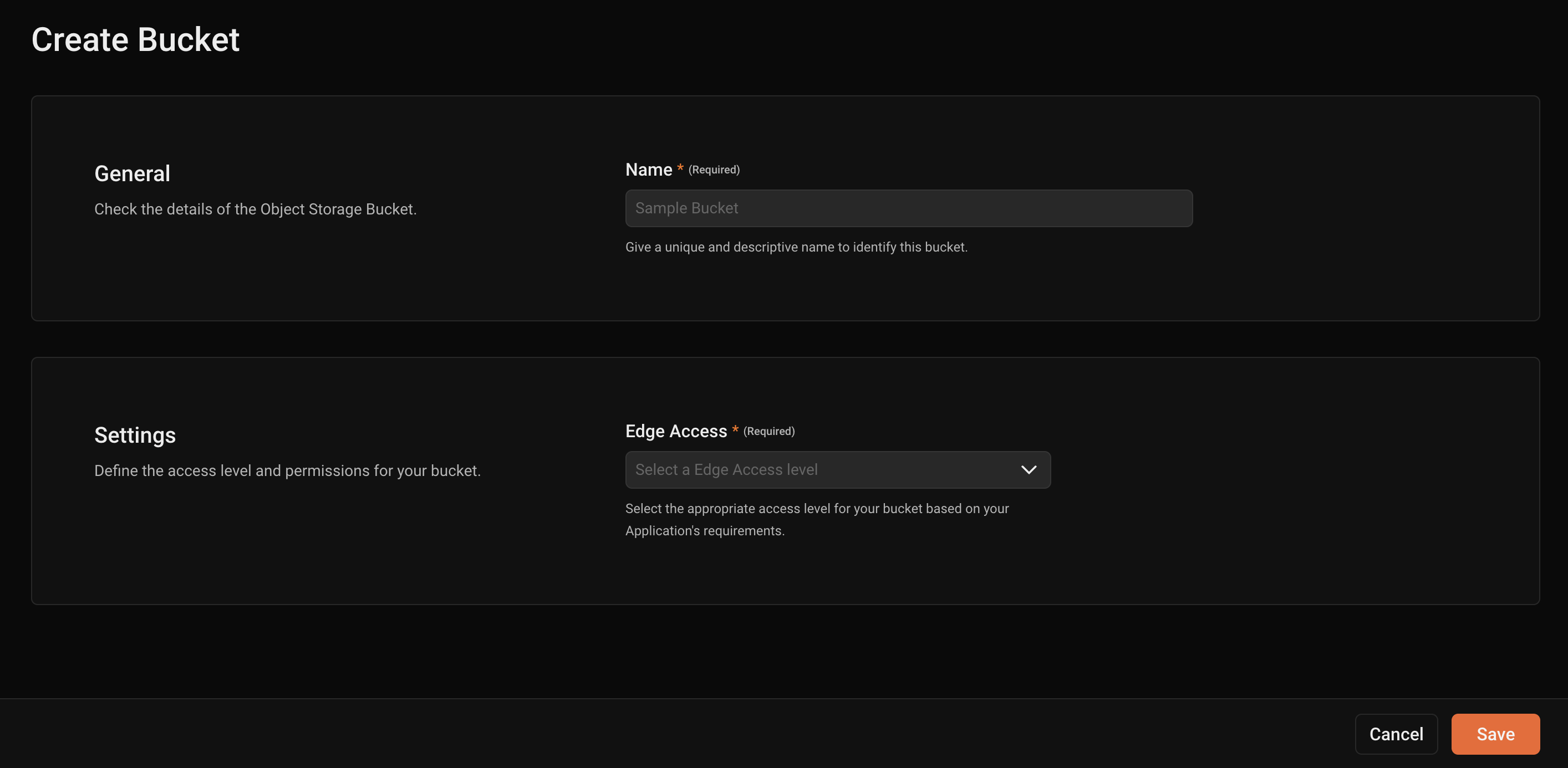
- Click the + Buckets button.
- Fill in the bucket name with a unique and descriptive name to identify it.
- Then, select the access type (Read & Write, Read Only, or Restricted).
- Click Save.
Requirements
To create a bucket:
Azion CLI will present a series of interactions, so the bucket can be created. Run azion update edge-storage bucket -h for further information.
Run the following POST request in your terminal, replacing [TOKEN VALUE] with your personal token and name with the desired bucket name to create a new read-only bucket:
You should receive the following response:
Attributing read-write permission to bucket
Requirements
To create a bucket:
Azion CLI will present a series of interactions, so the bucket can be updated. Run azion update edge-storage bucket -h for further information.
Run the following PATCH request in your terminal, replacing [TOKEN VALUE] with your personal token and bucket_name with the name of the bucket to attribute the read-write permission:
You should receive the following response:
Now, you have successfully created a bucket and attributed read-write permissions to it. You can start storing and retrieving objects from this bucket.